Stock report
Use the stock report in Odoo Inventory for a detailed list of all stored products, including those reserved, purchased and in transit, as well as those delivered to customers.
TIP
The reporting feature is only accessible to users with admin access .
To access the stock report, go to Inventory app ‣ Reporting ‣ Stock.
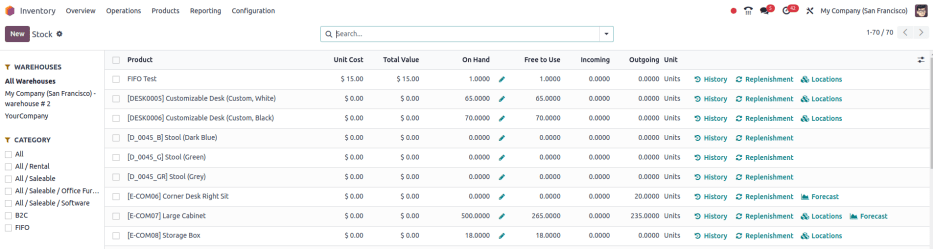
Navigate the stock report
On the stock report, the left sidebar includes several groupings to narrow down what is being shown. The default groupings are Warehouses, which filters products by specific warehouses, and Category, which shows products within a selected product category.
TIP
The Warehouse grouping is only available when there are multiple warehouses in the database. Refer to the ../inventory_management/warehouses documentation for more details.
In the report itself, the columns represent:
Product: name of the product.Unit Cost: average inventory valuation per unit, adjusted based on the cost to purchase and/or manufacture the product.Total Value: Total inventory valuation of the product, calculated by multiplying unit cost by on-hand quantity.::::: tabs ::::: tab Filters
The Filters section allows users to search among pre-made and custom filters to find specific stock records.
Published: display products published on the website. Only available with the Website app installed.Available in POS: display products available through the Point of Sale app.Available in Self: display products available in self order through the Point of Sale app. Appears in the search because theAvailable in Self Ordercheckbox was ticked in thePoint of Salesection of a product form'sSalestab. The option is only available when theAvailable in POScheckbox is ticked.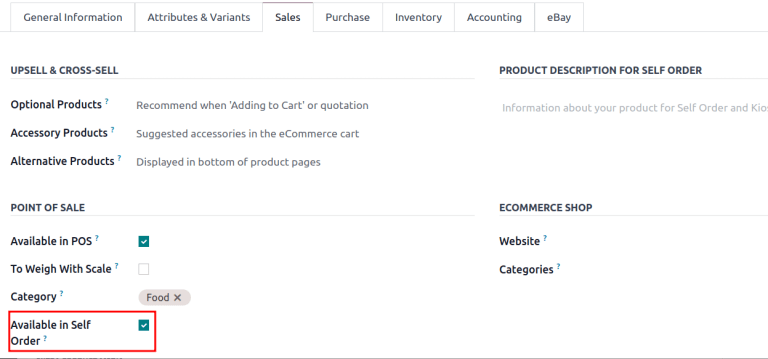
Not available in Self: display products available in PoS, but not available in self order.Can be Sold: display products that can be sold to customers. Appears in the search because theCan be Soldcheckbox is ticked on the product form.Can be Purchased: display products that can be bought from vendors. Appears in the search because theCan be Purchasedcheckbox is ticked on the product form.Can be Recurring: show subscription products, indicated by ticking theRecurringcheckbox on the product form. Only available with the Subscription app activated.Can be Rented: show products that can be loaned to customers for a certain time. Appears in the search because theCan be Rentedcheckbox was ticked on the product form. Only available with the Rental app installed.Can be Subcontracted: display products that can be produced by a third-party manufacturer. Available only with the Manufacturing app installed.Can be Expensed: show items that can be expensed. Only available with the Expenses app installed.
:::::
::: tab Group By
The Group By section allows users to add pre-made and custom groupings to the search results.
Product Type: group items byproduct type.Product Category: group items by product category. To configure these, go toInventory app ‣ Configuration ‣ Products: Product Categories.POS Product Category: group items bypoint of sale product categories. :::
::: tab Favorites
To save the current applied filters and groupbys, so the same information can be easily accessed after closing this page, click Save current search.
Optionally, tick the Default filter checkbox to make this current view the default filter when opening the stock report. Or tick the Shared checkbox to make the search option available to other users.
Lastly, click the Save button. ::: ::::::::