Envia.com integration
Envia.com is a shipping service that connects businesses with multiple carriers in Odoo. Key features include:
- Multi-carrier & international shipping: Compare rates across carriers and select the best option for domestic or global shipments.
- Automated label generation: Generate shipping labels at order confirmation.
- Real-time rate calculation: Fetch rates based on package details and destination.
Setup in Envia
To integrate Envia.com with Odoo, first create an account and activate the necessary shipping carriers. Then, obtain the API credentials, which is used to connect Envia.com to the Odoo database.
Create an account and activate carriers
Begin by going to Envia.com.
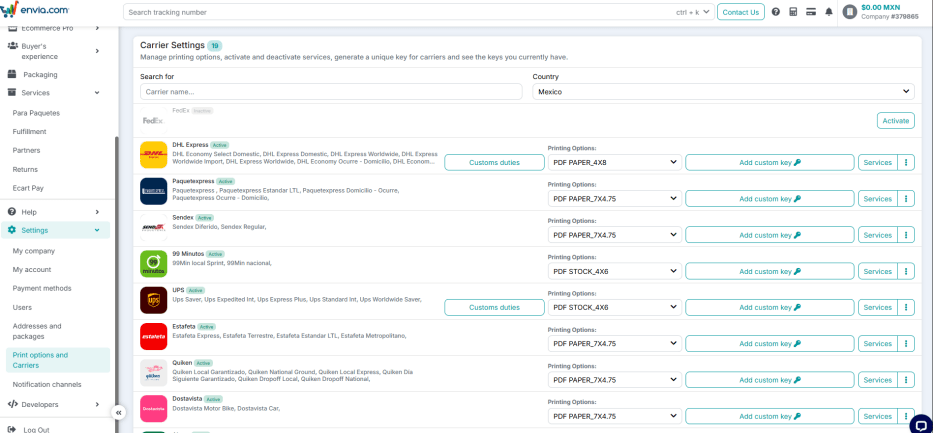
After signing in, in the left sidebar, click Settings ‣ Print Options and Carriers. Next, select the country to set the currency and display available shipping carriers.
WARNING
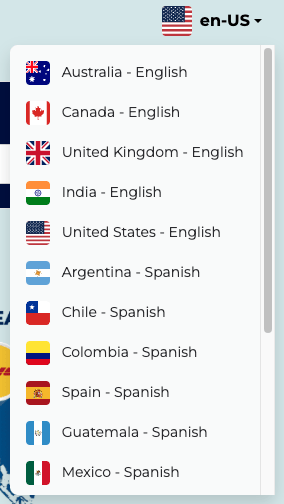
When signing up, make sure to select the correct language and country in the upper right-hand corner. This affects the currency of the account!
After deciding on the desired carrier, click Activate, then click Services to select the carrier's available shipping options.
TIP
Billing is always processed in the currency of the country that matches the primary billing address. If the company operates in multiple countries, consider creating separate accounts for each location.
TIP
Envia will send an SMS or WhatsApp message to confirm the email address and phone number.
Generate Envia.com credentials
Go to Envia.com, navigate to Developers ‣ API Keys, on the left menu, then click add to generate a new key.
This key is required to authenticate Odoo's connection with Envia.com. Retrieve it at any time by returning to the API Keys section.

Setup in Odoo
Install the Envia Shipping ([delivery_envia]) module, and proceed to the following sections to configure the integration in Odoo.
Envia.com shipping connector configuration
After activating the Envia.com connector, create a delivery method by going to Inventory ‣ Configuration ‣ Delivery Methods and click New.
Fill out the following form fields:
Shipping Method: Name of the shipping method, e.g. [Envia.com].Provider: SelectEnviafrom the drop-down menu.Delivery Product: The product listed on the sales order as the delivery charge. A specific delivery product for Envia.com must be created.- In the
Envia Configurationtab, enter theEnvia Production Access Token. - In the
Envia Configurationtab, enter theEnvia Sandbox Access Token. Insurance percentage: If insurance is needed, place a percentage of the value to insure. If not, leave it as 0. Keep in mind that the insurance price is calculated only after the label has been generated, including for LTL shipments.
TIP
It is mandatory to fill both the production and sandbox tokens, but it could be left as a random character as it is not validated at this point.
Additional considerations for the Envia Default Package:
- The package is specified in
mmandkg. The weight refers to the container itself, not its contents. Leave the weight as [0] if no weight is reported, and set the max weight to [0] if there is no specified limit. Envia Package Type: Set toBoxby default. Ensure the correct type is selected, as it affects the available carriers and options displayed, which vary depending on this selection.
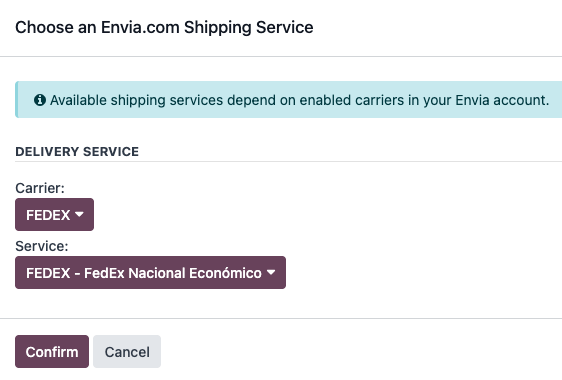
Once previous fields are properly set, navigate to the Envia Configuration tab, and in the Envia.com Service Name field, click the fa-refresh(refresh) icon to sync the carriers. In the pop-up window that appears, select a carrier and a service level from the list.
WARNING
Envia keeps the main currency of the account fixed. In order to provide more precise conversions for the costs of shipping, specify the currency that is set for the account on Envia. If necessary, Odoo offers the option to change the country. By default it uses the country associated with the company.
TIP
If more than one shipping option is needed, create more shipping methods in Odoo and modify any parameter like the package, carrier, or service.
Shipping information
To use Envia.com to generate shipping labels, the following information must be filled out accurately and completely in Odoo:
Customer information: When creating a quotation, ensure the selected
Customerhas a valid phone number, email address, and shipping address.To verify, select the
Customerfield to open their contact page. Here, add their shipping address in theContactfield, along with theirMobilenumber andEmailaddress.Product weight: Ensure all products in a delivery order have a specified
Weightin theInventorytab of their product form. Refer to theProduct weight sectionof this article for detailed instructions.Warehouse address: By default all packages are sent from the specified address in the warehouse, make sure to set the address for correct label generation.
Address filling guide
Each country has rules regarding how an address is filled. This is a comprehensive guide of each country's expected fields exceptions:
Country Street Street 2 City State_id
Argentina Street and number Locality City Province Brazil Exception Neighborhood City State Chile Street and number City Commune Region Colombia Street and number Not needed Municipality Department Guatemala Street and number Neighborhood City State Mexico Street and number Neighborhood City State Uruguay Street and number Complementary info Locality State
Countries not listed here should be entered normally.
TIP
For some countries, the zip code is not commonly requested. If empty, Odoo will use Envia's zip approximation services to get the zip code.
For Colombia, the zip code is extracted from the city selected in [city_id] if the localization is installed, otherwise Odoo will use the zip field.
TIP
Colombia and Mexico have a list of cities referred to as [city_id] in Odoo. If [city_id] is set, it is used as the city field. If not set, then Odoo will try to use the city field.
TIP
In Mexico, some carriers might require the Colony field, commonly known as neighborhood. It is not always mandatory, but when using the EDI for Mexico (Advanced Features) module, the Colony field is required.
TIP
In Brazil the address is split to comply with regulation, so [street_name] is used for the street name only. [street_number1] is used for the street number and [street_number2] is used for the complement. This logic also applies if the Extended Addresses module is installed.
Generate labels with Envia
When creating a quotation in Odoo, add shipping and the Envia.com shipping product. Then, Validate the delivery. Shipping label documents are automatically generated in the chatter, which include the following:
Shipping label(s)depending on the number of packages.Return label(s)if the Envia.com connector is configured for returns.
WARNING
When labels are created, Envia.com automatically charges the configured account and the final amount is logged in the chatter. If multi-currency operations occur, the amount logged is calculated using Odoo's rate. Actual rates may vary.
Additionally, the tracking number is now available.
TIP
Brazilian Authorities might request the invoice related to the shipping (NFe). It is recommended to physically attach the invoice of the order along with the label.
International shipping
For international shipments it is required to fill both the HS code and the country of Origin of Goods, both can be found on the product's Inventory tab.
LTL shipments
LTL shipment labels can be generated through the Envia connector. The insurance for LTL shipments is based on the insurance percentage specified in the delivery method's form.
WARNING
For Mexico, since a Bill of Landing needs to be created for the shipment, Odoo is required to send the UNSPSC code of the contents, as well as a unit of measure for transportation which is X8A - Pallet de madera by default.
TIP
Additional services are available when selecting [pallet] as a Envia Package Type on the delivery method, which allows selecting additional services like lift assistance and deliveries during weekends.
Tracking and cancellation
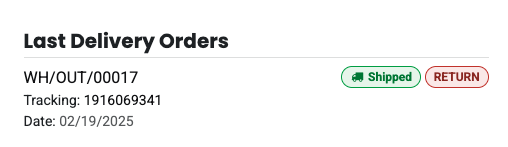
Shipments registered with Envia can be tracked using the Tracking smart button from the delivery order or using the tracking link from the customer portal .
FAQ
Measuring volumetric weight
Many carriers have several measurements for weight. There is the actual weight of the products in the parcel, and the volumetric weight. Volumetric weight is the volume that a package occupies when in transit, i.e. the physical size of a package.
TIP
Due to volumetric weight, it is possible that the actual weight in the label is higher than the calculated value.
Which printing options are available?
On Envia.com in Settings ‣ Print options and Carriers printing options for each of the carriers displayed, make sure to use the appropriate format for the chosen carrier.
The needed service is not available
For available carriers, make sure that they are enabled through Envia.
Who will pay customs duties?
It's important to make sure that if there are exports to other countries, use Envia's carrier settings to configure whether it is paid by the sender or the receiver.
What is "Envia error"?
It's a message that appears when there's an error in Envia. This message mentions what went wrong in their platform so it can be addressed.