Bpost integration
Set up the Bpost shipping connector in Odoo to manage Bpost shipments to clients directly within Odoo. To configure it, complete these steps:
- Create a Bpost account.
- Get the
Account ID and passphrase. Set up the shipping method in Odoo.
Upon completion, it is possible to calculate the cost of shipping, based on package size and weight, have the charges applied directly to a Bpost business account, and automatically print Bpost tracking labels through Odoo.
Account setup
To begin, go to the Bpost website to create, or log into, the company's Bpost business account. When creating the Bpost account, have the company's VAT number and mobile phone number ready.
Follow the website's steps to complete registration, and sign up for shipping services. Doing so submits a request to enter a contractual business relationship between the company and Bpost.
WARNING
Odoo cannot be integrated with non-business Bpost accounts.
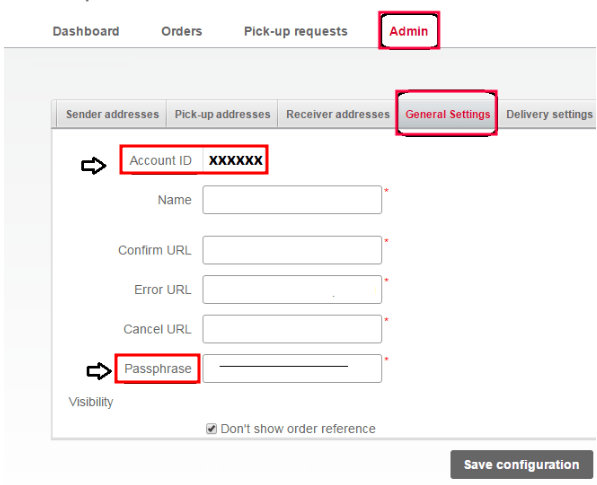
After completing the setup, get the Bpost account ID and passphrase, by navigating to the Shipping Manager menu item.
::: On the Shipping Manager page, go to the Admin tab, then the General Settings tab, to find the Account ID and Passphrase needed to configure Odoo's shipping method. :::
Shipping method configuration
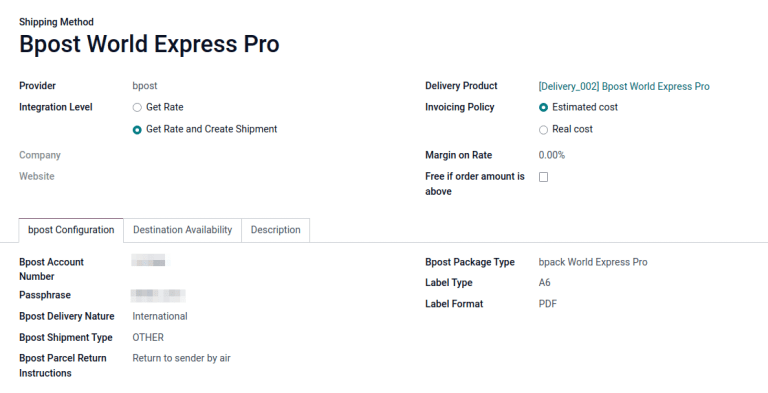
With those necessary credentials, configure the Bpost shipping method in Odoo by going to Inventory app ‣ Configuration ‣ Shipping Methods.
On the Shipping Methods page, click Create.
In the Provider field, select Bpost from the drop-down menu. Doing so reveals the Bpost Configuration tab at the bottom of the form, where the Bpost credentials can be entered.
For details on configuring the other fields on the shipping method, such as Delivery Product, refer to the Configure third-party carrier documentation.
TIP
To generate Bpost shipping labels through Odoo, ensure the Integration Level option is set to Get Rate and Create Shipment.
In the Bpost Configuration tab, complete the following fields:
Bpost Account Number(required field): enter the company's uniqueaccount IDfrom the Bpost website.Passphrase(required field): enter thepassphrasefrom the Bpost website.Bpost Delivery Nature: select eitherDomesticorInternationalshipping services. ChoosingDomesticshows theOptionssection, whileInternationalenables theBpost Shipment TypeandBpost Parcel Return Instructionsfields.Bpost Package Type: select the type of shipping service from the drop-down menu.For domestic delivery, the options are:
bpack 24h Pro,bpack 24h business, orbpack Bus.For international delivery, the options are:
bpack World Express Pro,bpack World Business, orbpack Europe Business.Bpost Shipment Type(required field): for international deliveries, declare the type of goods in the package asSAMPLE,GIFT,GOODS,DOCUMENTS, orOTHER.Bpost Parcel Return Address: return address when an international shipment fails to deliver. Select from the drop-down menu:Destroy,Return to sender by air, orReturn to sender by road.Label Type: chooseA6orA4label sizes from the drop-down menu.Label Format: choosePDForPNGfrom the drop-down menu.
For domestic deliveries, these features are available in the Options section:
- Enable the
Delivery on Saturdayfeature to include Saturdays as possible delivery dates. Depending on theBpost Package Typeselected, this option might incur additional costs to the company. - Enable the
Generate Return Labelfeature to automatically print a return label upon validating the delivery order.