Zebra label configuration
In Odoo, labels printed in the Zebra Programming Language (ZPL) file format are designed to fit a four-by-six inch label. To resize (or reformat) text to fit a variety of ZPL (Zebra Programming Language) label sizes, navigate to the ZPL label view , and alter the ZPL (Zebra Programming Language) code.
WARNING
When customizing code in Odoo, please note that upgrading the database to newer versions may break custom ZPL (Zebra Programming Language) code. Customers are responsible for maintaining their custom code.
Refer to the following sections for explanations, and example code, for frequently requested Zebra label customizations.
Adjust marginsEnlarge/minimize barcodesRotate elements
Navigate to ZPL label view
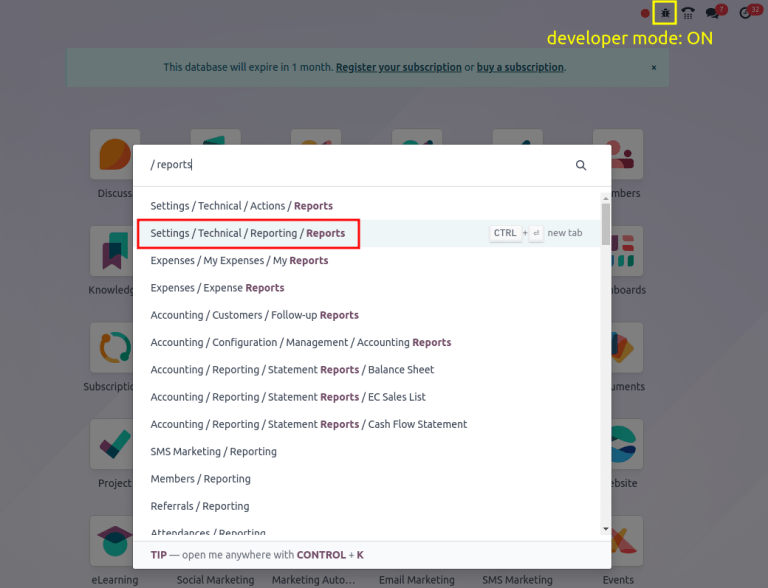
To begin customizing a Zebra label in Odoo, turn on developer mode , and on the main Odoo dashboard, type [Reports]. From the search results that appear in the resulting pop-up window, choose Settings / Technical / Reporting / Reports to open the Reports page.
TIP
To manually navigate to the Reports page, go to Settings app ‣ Technical ‣ Reporting: Reports.
On the Reports page, in the Search... bar, type [ZPL], and hit Enter. Upon doing so, Odoo presents a list of available Zebra labels in Odoo. Select the desired Zebra label from the list to modify it on a separate page.
TIP
Printable ZPL labels in Odoo:
lot/serial number- operation type
- package barcode
product label- product packaging
- finished product (Odoo Manufacturing app required)
Next, click the fa-codeQweb Views smart button, and choose the desired label view .
Lot and Serial Number (ZPL) report, highlighting the Qweb smart button.
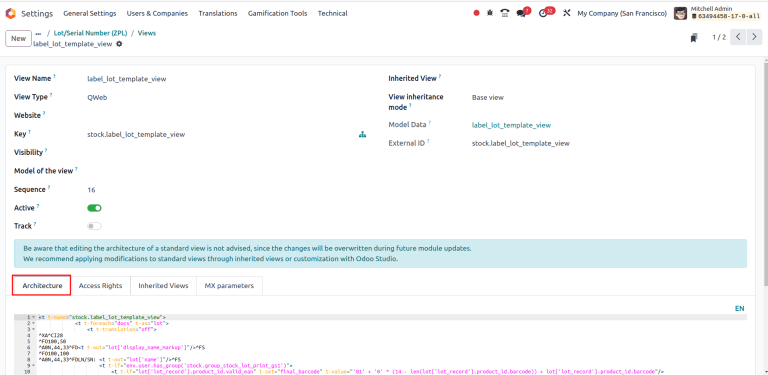
On the resulting view form, go to the Architecture tab to view the ZPL (Zebra Programming Language) code.
WARNING
To ensure the customization is not overwritten during an update, click the fa-bug(bug) icon on the view page. Then, select the View Metadata option from the resulting drop-down menu, in order to open the View Metadata pop-up window. Then, ensure the No Update field is set to true (change). Click Ok to exit the View Metadata pop-up window.
Adjust margin
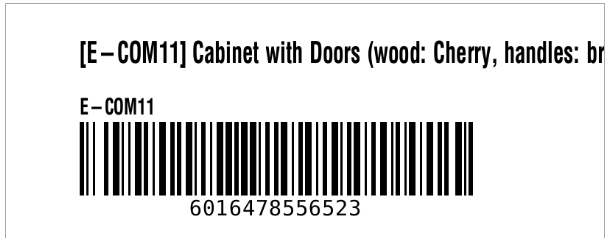
Text gets cut off from standard ZPL (Zebra Programming Language) labels printed in Odoo when the line exceeds fifty-five characters. To fit long product names, or lot numbers, on a single line, adjust the margin.
To begin, navigate to the ZPL code of the label in the Architecture tab. In the ZPL (Zebra Programming Language) code for product labels, look for the [^FT] command, which specifies where to start placing the text, or graphic element, on the label. The two numbers immediately following [^FT] define the x-coordinate and y-coordinate in dots (similar to pixels for printers) from the left and top margins.
WARNING
When customizing lot/serial number labels, look for the [^FO] command, instead of [^FT].
TIP
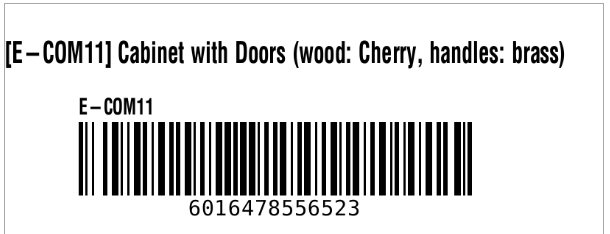
The following is an example where the product's name gets cut off with Odoo's default ZPL (Zebra Programming Language) formatting. In the Fixed tab, the x-coordinate of the starting position of the label is changed from [^FT100,80] to [^FT0,80], to fit the entire name.
::::: tabs ::: tab Default
Code:
^XA^CI28
^FT100,80^A0N,40,30^FD[E-COM11] Cabinet with Doors (wood: Cherry, handles: brass)^FS
...
^XZ
:::
::: tab Modified
Code:
^XA^CI28
^FT0,80^A0N,40,30^FD[E-COM11] Cabinet with Doors (wood: Cherry, handles: brass)^FS
...
^XZ
::: :::::
Resize barcode
To adjust the size of the barcode to scale, begin by navigating to the ZPL code of the label in the Architecture tab. Look for the [^FO] command (typically in the third line), which is the starting point of the margin for the barcode.
The [^BY] command configures barcode size, and takes three numbers: bar width, width of wide bars relative to narrow bars, and bar height. By default, ZPL (Zebra Programming Language) code in Odoo uses [^BY3], setting the bar width to three dots, a typical size that is easy for barcode scanners to read.
TIP
To shrink the barcode to scale, [^BY3] is reduced to [^BY2].
::::: tabs ::: tab Default
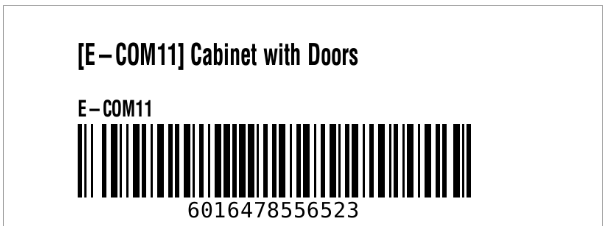
Code:
^XA^CI28
...
^FO100,160^BY3
...
^XZ
:::
::: tab Modified
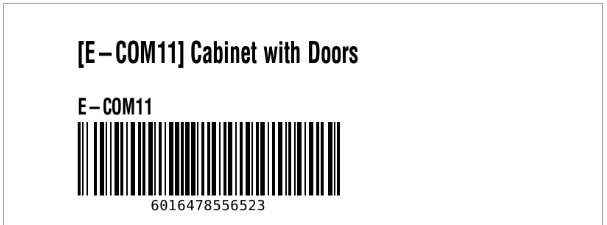
Code:
^XA^CI28
...
^FO100,160^BY2
...
^XZ
::: :::::
Rotate elements
To rotate elements in ZPL (Zebra Programming Language), begin by navigating to the ZPL code of the label in the Architecture tab.
The [^BC] command's first parameter (information that affects the behavior of the command) defines the rotation of an item, which can be:
- `N`: display normally
- `R`: rotate 90 degrees
- `I`: rotate 180 degrees
- `B`: rotate 270 degrees
TIP
To rotate the barcode, [^BCN] is changed to [^BCB].
::::: tabs ::: tab Default
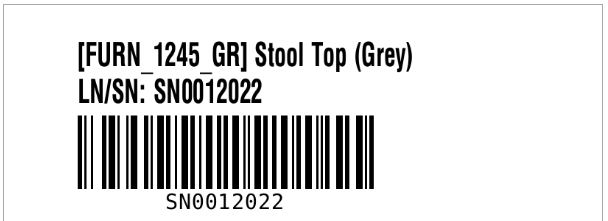
Code:
^XA^CI28
...
^BCN,100,Y,N,N
...
^XZ
:::
::: tab Modified
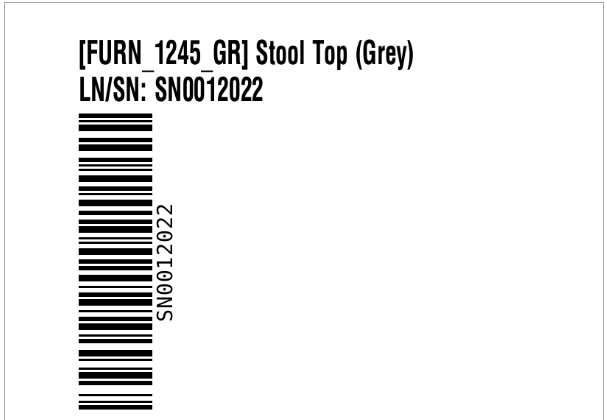
Code:
^XA^CI28
...
^BCB,100,Y,N,N
...
^XZ
::: :::::