Reservation methods
Companies that sell and deliver goods to customers need to make sure they always have stock on-hand, so when new sales orders are confirmed, they can deliver products on time.
In Odoo, this can be handled using reservation methods. Reservation methods control how products included in a delivery order (DO) should be reserved for delivery, ensuring they are reserved at the correct times, for the correct orders.
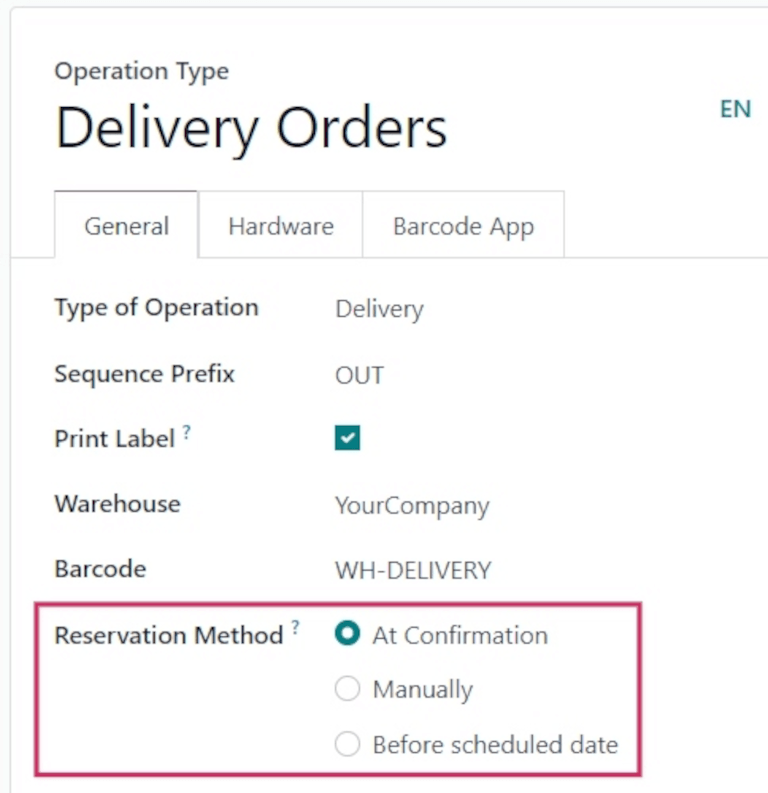
There are three different reservation methods in Odoo: At Confirmation, Manually, and Before scheduled date.
:::::: tabs ::: tab At Confirmation
Reserves products only when a sales order is confirmed, and if stock is already available. :::
::: tab Manually
Once a quote is confirmed, product availability must be checked manually, and the required quantity must be reserved manually. :::
::: tab Before scheduled date
A specific number of days can be selected; this is the maximum number of days before a scheduled delivery date that products should be reserved. ::: ::::::
Configuration
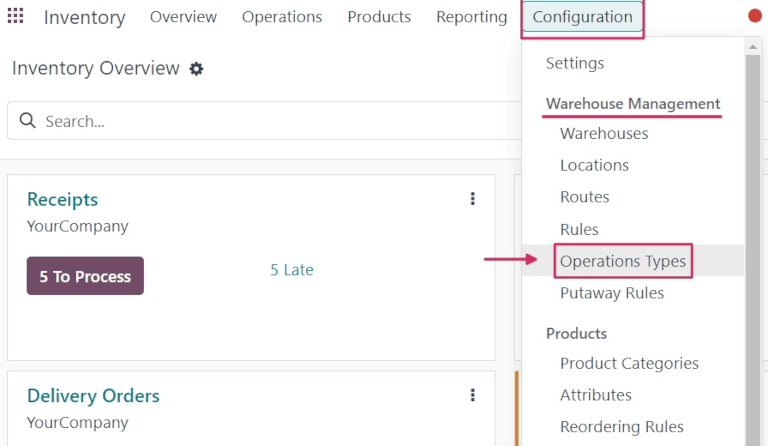
Reservation methods are set on individual operations types. To configure reservation methods, go to Inventory app ‣ Configuration ‣ Operations Types. Then, select the desired operation type. Or, create a new one by clicking New.
In the General tab of the operation type form, locate the Reservation Method option, and choose which method should be used for this type of operation.
TIP
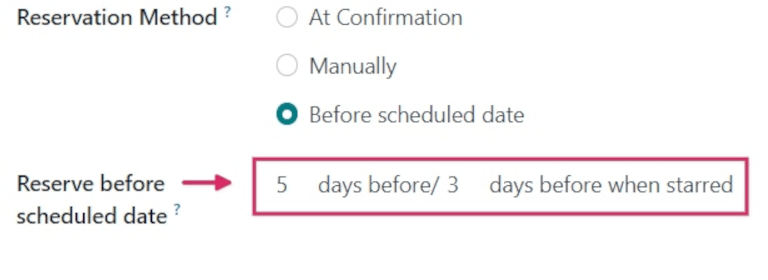
If the Before scheduled date reservation method is selected, a new Reserve before scheduled date field appears below. From this field, the number of days before and days before when starred can be changed from the default [0].
Changing the days before value changes the maximum number of days before a scheduled date that products should be reserved.
Changing the days before when starred value changes the maximum number of days before a scheduled date that starred (favorited) transfers for products should be reserved.
Required applications
The two required applications that must be installed to use reservation methods are the Sales and Inventory apps.
TIP
In addition to delivery orders, reservation methods can also be used for manufacturing orders, resupply subcontractor orders, orders for repairs, and internal transfers, if desired. To enable this, configure the additional settings:
- For manufacturing orders: Install the Manufacturing application by going to the
Appsapplication, locating the Manufacturing app, and clickingInstall. - For resupply subcontractor: Navigate to
Manufacturing app ‣ Configuration ‣ Settings, and under theOperationssection, enableSubcontracting. Then, clickSave. - For repairs: Install the Repairs application by going to the
Appsapplication, locating the Repairs app, and clickingInstall. - For internal transfers: Navigate to
Inventory app ‣ Configuration ‣ Settings, and under theWarehousesection, enableStorage Locations. Then, clickSave.
Once these apps are installed, no additional features need to be enabled from the settings for reservation methods to work. They will be available by default on certain operations types, and can be viewed and changed by navigating to Inventory app ‣ Configuration ‣ Operations Types, and then clicking on a specific operations type.
TIP
When the Type of Operation is changed to Receipt on an Operations Type form, reservation methods are not available.
::: reservation_methods/at_confirmation reservation_methods/manually reservation_methods/before_scheduled_date :::