Putaway rules
Putaway is the process of routing products to appropriate storage locations upon shipment arrival.
Odoo can accomplish this seamlessly using putaway rules, which dictate how products move through specified warehouse locations.
Upon shipment arrival, operations are generated based on putaway rules to efficiently move products to specified locations, and ensure easy retrieval for future delivery orders.
In warehouses that process specific kinds of products, putaway rules can also prevent volatile substances from being stored in close proximity, by directing them to different locations determined by the warehouse manager.
Configuration
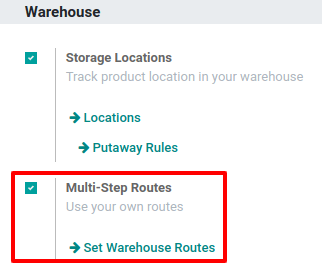
To use putaway rules, navigate to Inventory app ‣ Configuration ‣ Settings, and activate the Multi-Step Routes feature under the Warehouse section. By doing so, the Storage Locations feature is also automatically activated.
Finally, click Save.
Define putaway rule
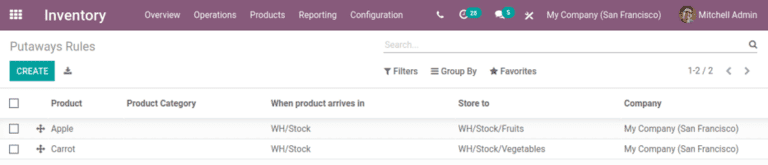
To manage where specific products are routed for storage, navigate to Inventory app ‣ Configuration ‣ Putaway Rules. Use the Create button to configure a new putaway rule on a Product or Product Category that the rule affects.
WARNING
Putaway rules can be defined either per product/product category, and/or package type (the Packages setting must be enabled in Inventory app ‣ Configuration ‣ Settings for that).
In the same line, the When product arrives in location is where the putaway rule is triggered to create an operation to move the product to the Store to location.
For this to work, the Store to location must be a sub-location of the first (e.g., [WH/Stock/Fruits] is a specific, named location inside [WH/Stock] to make the products stored here easier to find).
TIP
In a warehouse location, WH/Stock, there are the following sub-locations:
- WH/Stock/Fruits
- WH/Stock/Vegetables
Ensure all apples are stored in the fruits section by filling the field Store to with the location [WH/Stock/Fruits] when the Product, [Apple] arrives in [WH/Stock].
Repeat this for all products and hit Save.
Putaway rule priority
Odoo selects a putaway rule based on the following priority list (from highest to lowest) until a match is found:
- Package type and product
- Package type and product category
- Package type
- Product
- Product category
TIP
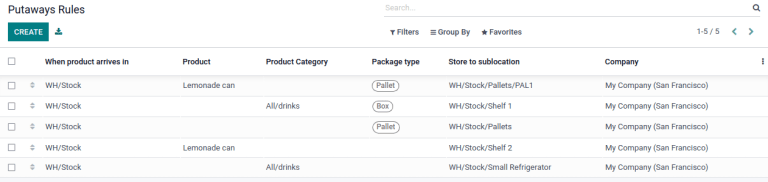
The product [Lemonade can] has the following putaway rules configured:
- When receiving a [Pallet] (
Package Type) of [Lemonade cans], it is redirected to [WH/Stock/Pallets/PAL1]. - [Lemonade can]'s
Product Categoryis [All/drinks], and when receiving a [Box] of any item in this product category, items are redirected to [WH/Stock/Shelf 1]. - Any product on a [Pallet] is redirected to [WH/Stock/Pallets]
- The product [Lemonade can] is redirected to [WH/Stock/Shelf 2]
- Items in the [All/drinks] product category are redirected to [WH/Stock/Small Refrigerator].