FIFO removal
The First In, First Out (FIFO) removal strategy selects products with the earliest arrival dates. This method is useful for companies selling products that have short demand cycles, like clothes, for example. By using FIFO (First In, First Out), companies can prevent prolonged stock retention of specific styles.
TIP
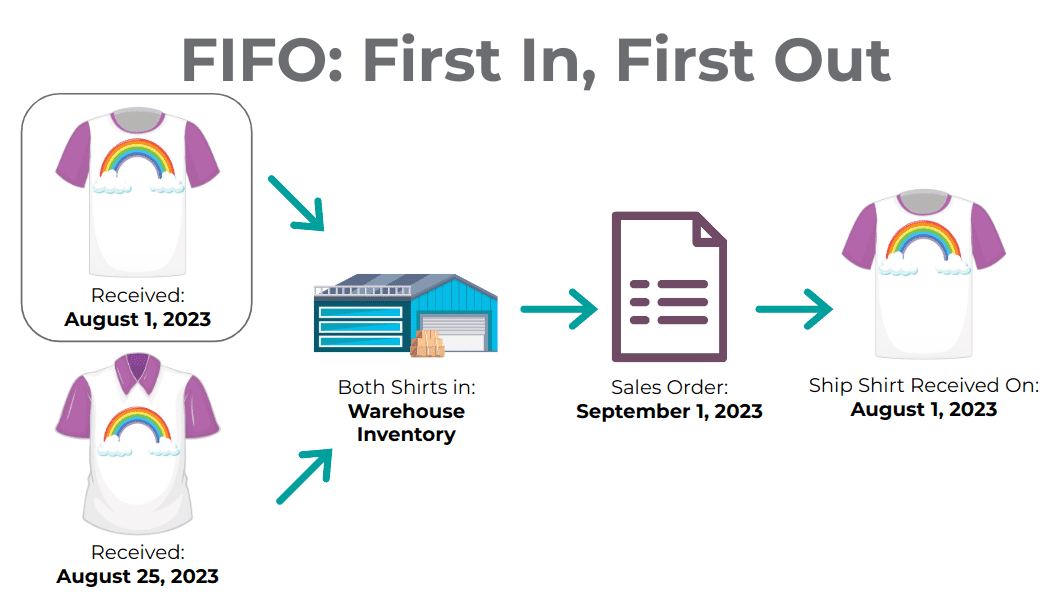
Various quantities of the product, [T-shirt], tracked by lot numbers, arrive on August 1st and August 25th. For an order made on September 1st, the FIFO (First In, First Out) removal strategy prioritizes lots that have been in stock the longest. So, products received on August 1st are selected first for picking.
Arrival date
To see the product lot or serial number that arrived in inventory first, navigate to Inventory app ‣ Products ‣ Lots/Serial Numbers.
Then, select the ▶️ (right-pointing arrow) icon on the left of a product line, in order to reveal a list of the product's lots or serial numbers that are in stock. The Created On field shows the lot/serial number creation date, which is, essentially, the arrival date.
TIP
Serial number [00000000500] of the product, [Cabinet with Doors], arrived on December 29th, as displayed in the Created On field.

Workflow
To understand how FIFO (First In, First Out) rotates products out, consider the following example, focusing on three lots of white shirts.
The shirts are from the All/Clothes category, where FIFO (First In, First Out) is set as the Force Removal Strategy.
The white shirts are tracked By Lots in the Inventory tab of the product form.
The following table represents the on-hand stock and lot number details of white shirts.
LOT1 LOT2 LOT3
On-hand stock 5 3 2 Created on March 1 April 1 May 1
To see the removal strategy in action, create a delivery order for six white shirts by navigating to the Sales app and creating a new quotation.
After clicking Confirm on the sales order, a delivery order with the oldest lot numbers for shirts are reserved, using the FIFO (First In, First Out) removal strategy.
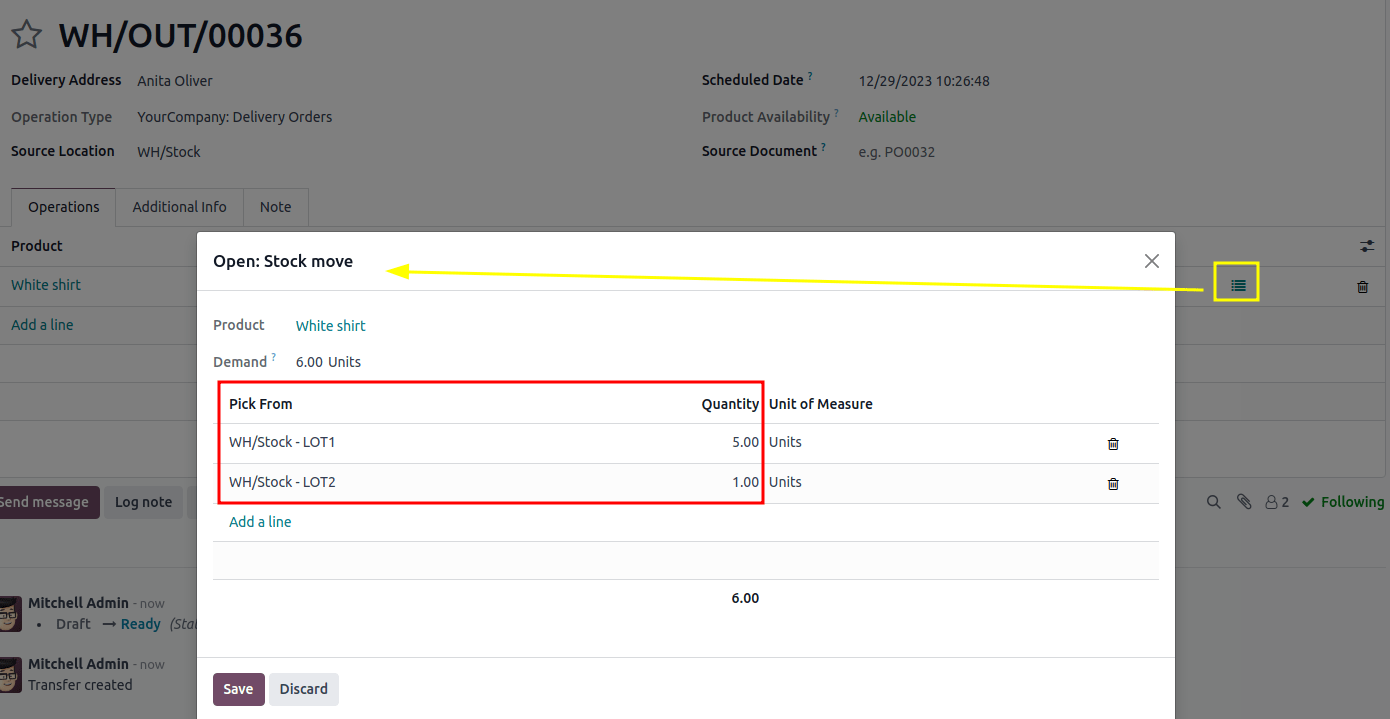
To view the detailed pickings, click the ⦙≣ (bulleted list) icon, located on the far-right of the white shirt's product line in the Operations tab of the delivery order. Doing so opens the Open: Stock move pop-up window.
In the Open: Stock move pop-up window, the Pick from field displays where the quantities to fulfill the Demand are picked from. Since the order demanded six shirts, all five shirts from [LOT1], and one shirt from [LOT2], are selected.